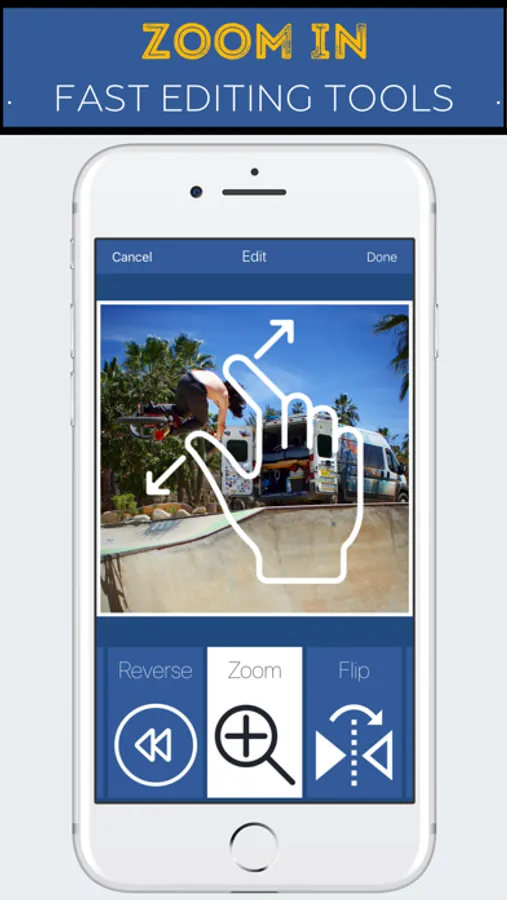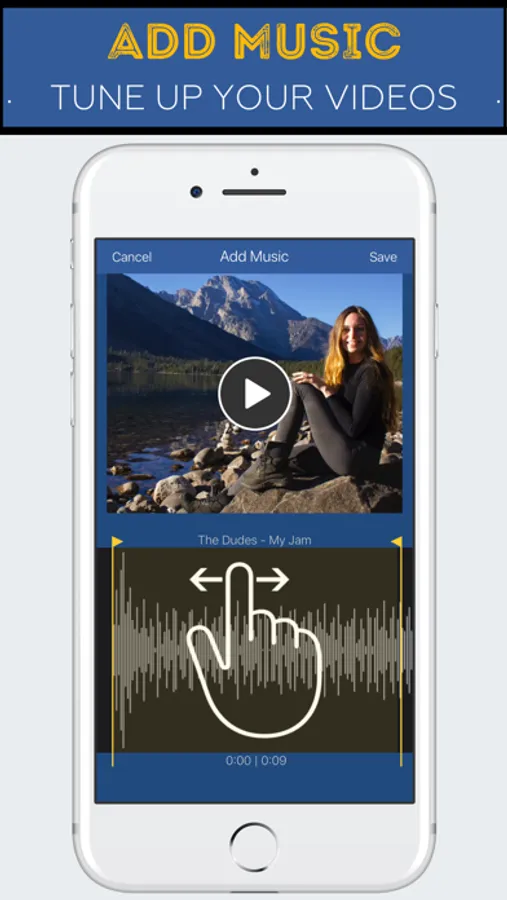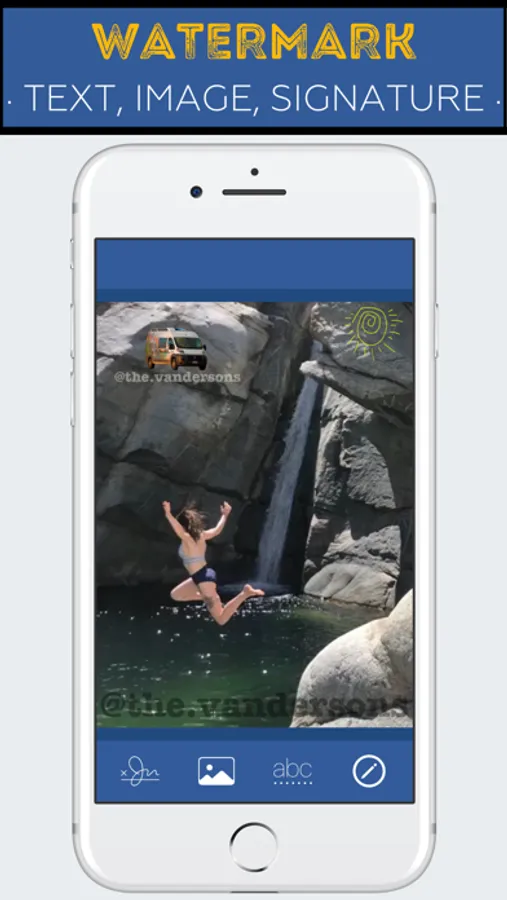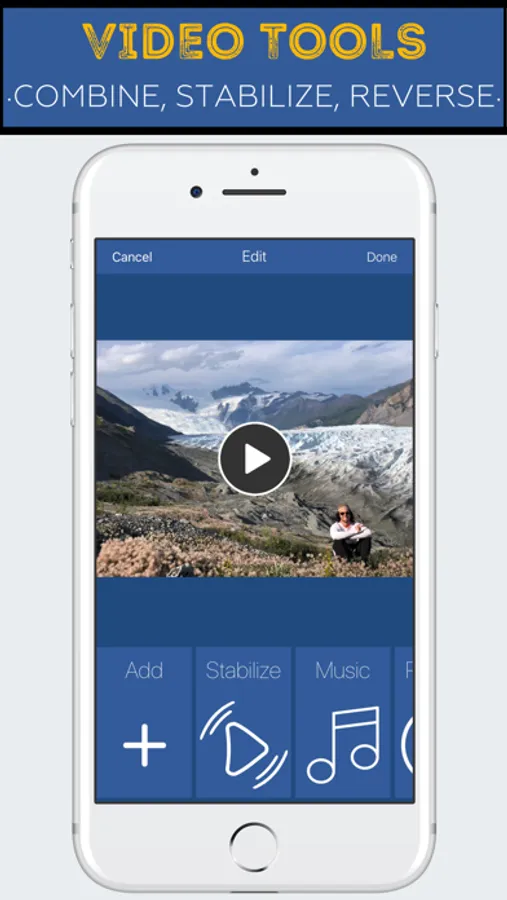
In this video editing app, you can combine clips, stabilize videos, add music, reverse, crop, rotate, and change video speed. Includes Photos and Action extensions for quick editing and sharing.
AppRecs review analysis
AppRecs rating 4.4. Trustworthiness 76 out of 100. Review manipulation risk 23 out of 100. Based on a review sample analyzed.
★★★★☆
4.4
AppRecs Rating
Ratings breakdown
5 star
78%
4 star
11%
3 star
6%
2 star
1%
1 star
5%
What to know
✓
Low review manipulation risk
23% review manipulation risk
✓
Credible reviews
76% trustworthiness score from analyzed reviews
✓
High user satisfaction
78% of sampled ratings are 5 stars
About Clippy: Video Editor Edit Tool
Simple to use + preserves video quality,
Includes Photos and Action extensions,
and it's free, try it now!
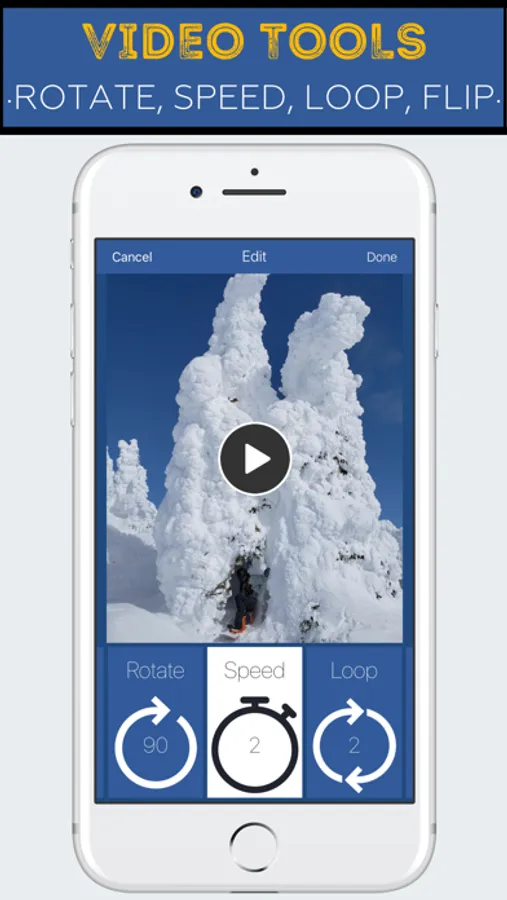
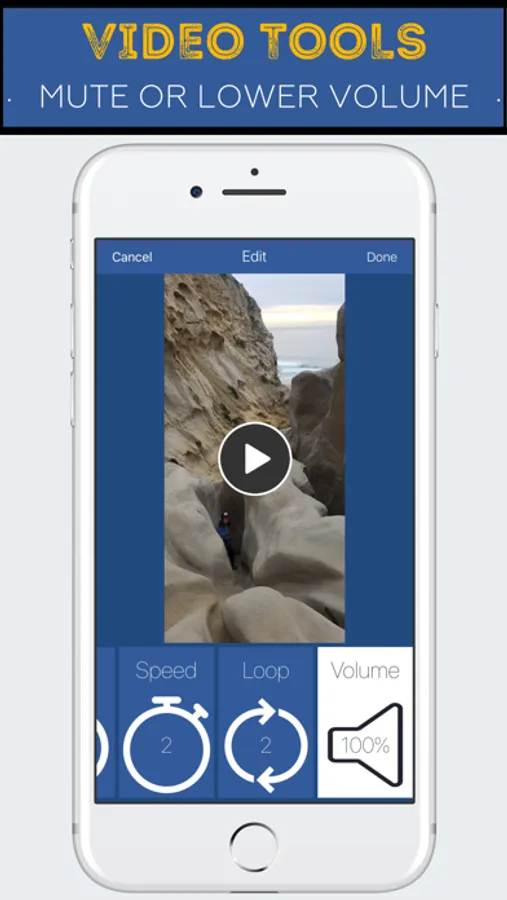
This app can be used to quickly combine clips, stabilize videos, loop videos, add music to videos, reverse videos, rotate videos, zoom or crop videos, change video speed, reduce volume, or mirror a video left to right (a.k.a. flip).
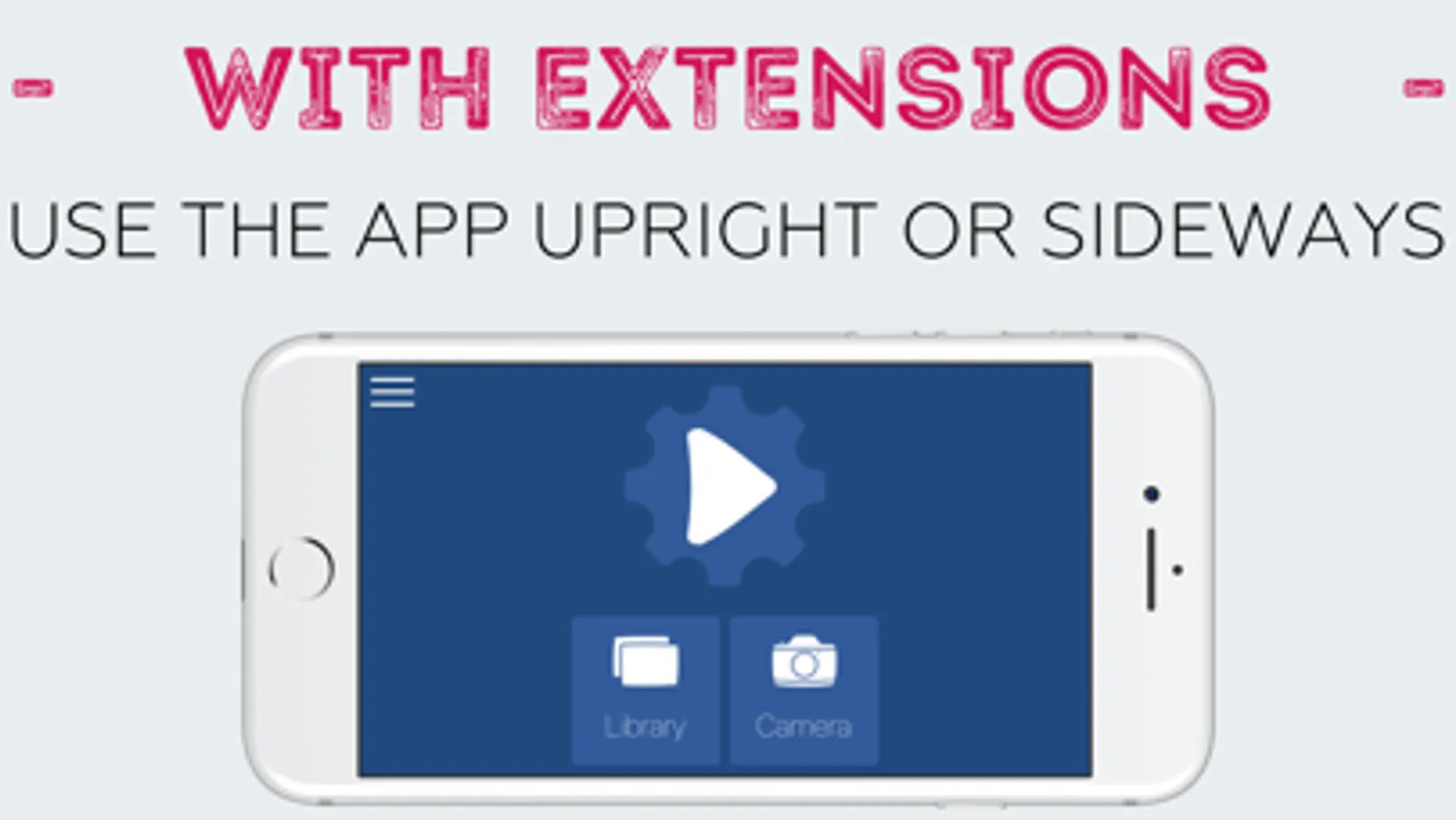
To use the app from within the Photos app, hit the "Edit" button after selecting a video. Also, anytime a video can be "shared" with the iOS "Share" button, you can use the Video Tools action to edit the video and share it to another app without having to save it again.
=====================
Video Editing Options
=====================
* Combine
* Stabilize
* Add Music
* Loop
* Reverse
* Crop / Zoom
* Rotate (90, 180, 270)
* Change speed (2x, 3x, 1/2 x, 1/4 x), or
* Flip (mirror horizontally)
* Volume (Muted up to 100%)
=====================
What is a Photos Extension
=====================
You can directly edit videos while in the Photos app, and the result will overwrite the original. You can "undo" the video to its original version with the "revert" button in Photos.
For example, looking through your videos in the Photos app, you notice one video is sideways. While looking at the paused video, tap "Edit", then tap "Video Tools", select rotate and save. Now the video is not sideways when you look through Photos!
=====================
How to Enable the Photos extension
=====================
1) Go to the Photos app,
2) Select a video,
3) Tap the Edit button
4) Tap the "...",
5) The extension can be enabled here and dragged to the top of the list: "Video Tools". Afterward, the extension will be visible after tapping Edit.
=====================
What is an Action Extension
=====================
You can directly edit videos wherever the system "Share" button is used, from the bottom list of "Actions." The result of the edit can be passed to another extension, shared, or saved to the camera roll.
For example, you receive a video in a text, with something funny going on in the background. Tap to view the video, then hit the "Share" button. In the bottom gray options, choose "Video Tools". Zoom in on the part you want and hit save, then share the result to Messages and send it back to your friend with the video zoomed on your focus.
=====================
How to Enable the Action extension
=====================
1) Go to the Photos app,
2) Select a video,
3) Tap the Share button
4) Tap the "..." at the end of the bottom list (all the options will be black and white),
5) The extension can be enabled here and dragged to the top of the list: "Video Tools". Afterward, the extension will be visible after tapping the Share button.
Includes Photos and Action extensions,
and it's free, try it now!
This app can be used to quickly combine clips, stabilize videos, loop videos, add music to videos, reverse videos, rotate videos, zoom or crop videos, change video speed, reduce volume, or mirror a video left to right (a.k.a. flip).
To use the app from within the Photos app, hit the "Edit" button after selecting a video. Also, anytime a video can be "shared" with the iOS "Share" button, you can use the Video Tools action to edit the video and share it to another app without having to save it again.
=====================
Video Editing Options
=====================
* Combine
* Stabilize
* Add Music
* Loop
* Reverse
* Crop / Zoom
* Rotate (90, 180, 270)
* Change speed (2x, 3x, 1/2 x, 1/4 x), or
* Flip (mirror horizontally)
* Volume (Muted up to 100%)
=====================
What is a Photos Extension
=====================
You can directly edit videos while in the Photos app, and the result will overwrite the original. You can "undo" the video to its original version with the "revert" button in Photos.
For example, looking through your videos in the Photos app, you notice one video is sideways. While looking at the paused video, tap "Edit", then tap "Video Tools", select rotate and save. Now the video is not sideways when you look through Photos!
=====================
How to Enable the Photos extension
=====================
1) Go to the Photos app,
2) Select a video,
3) Tap the Edit button
4) Tap the "...",
5) The extension can be enabled here and dragged to the top of the list: "Video Tools". Afterward, the extension will be visible after tapping Edit.
=====================
What is an Action Extension
=====================
You can directly edit videos wherever the system "Share" button is used, from the bottom list of "Actions." The result of the edit can be passed to another extension, shared, or saved to the camera roll.
For example, you receive a video in a text, with something funny going on in the background. Tap to view the video, then hit the "Share" button. In the bottom gray options, choose "Video Tools". Zoom in on the part you want and hit save, then share the result to Messages and send it back to your friend with the video zoomed on your focus.
=====================
How to Enable the Action extension
=====================
1) Go to the Photos app,
2) Select a video,
3) Tap the Share button
4) Tap the "..." at the end of the bottom list (all the options will be black and white),
5) The extension can be enabled here and dragged to the top of the list: "Video Tools". Afterward, the extension will be visible after tapping the Share button.