Memo Widget - Smart Notepad
Komorebi Inc.
4.9 ★
store rating
Free
AppRecs review analysis
AppRecs rating 4.4. Trustworthiness 65 out of 100. Review manipulation risk 30 out of 100. Based on a review sample analyzed.
★★★★☆
4.4
AppRecs Rating
Ratings breakdown
5 star
92%
4 star
6%
3 star
0%
2 star
0%
1 star
2%
What to know
✓
High user satisfaction
92% of sampled ratings are 5 stars
✓
Authentic reviews
No red flags detected
About Memo Widget - Smart Notepad
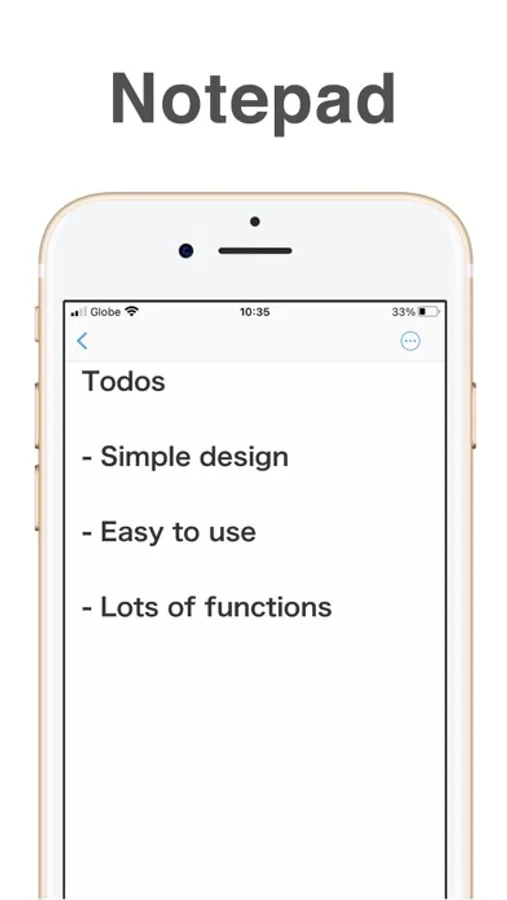
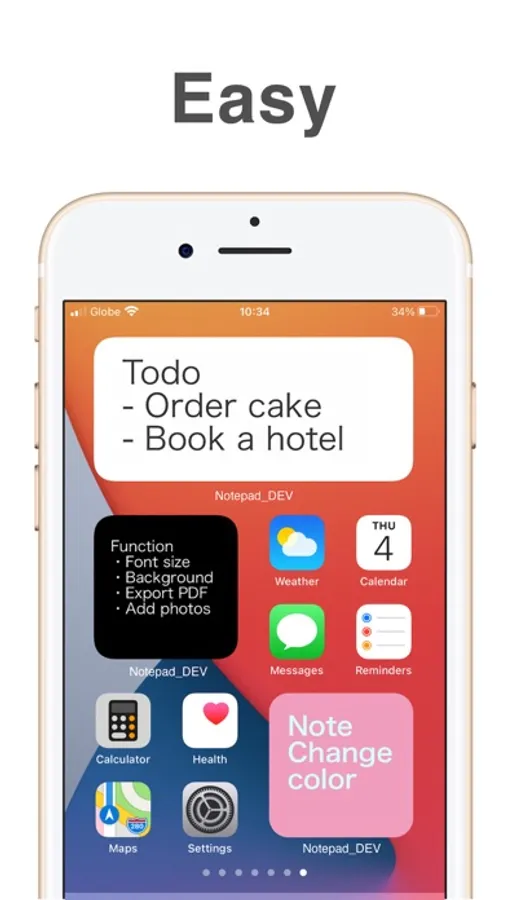
"Smart Notepad" is a simple notepad app that you can put on your home screen!
Useful features such as PDF output and iCloud backup.
It's easy for anyone to use, and it's perfect for quick notes!
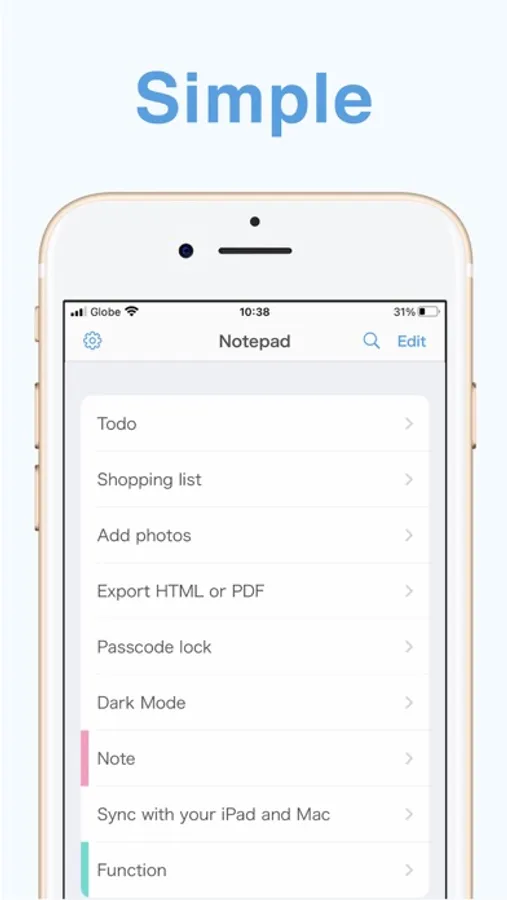
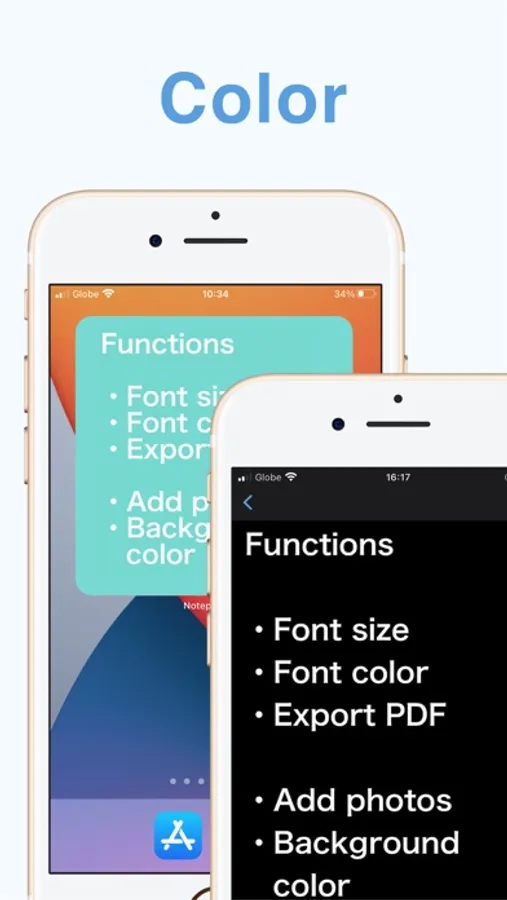
[Functions]
* Text size
* Background color
* Text color
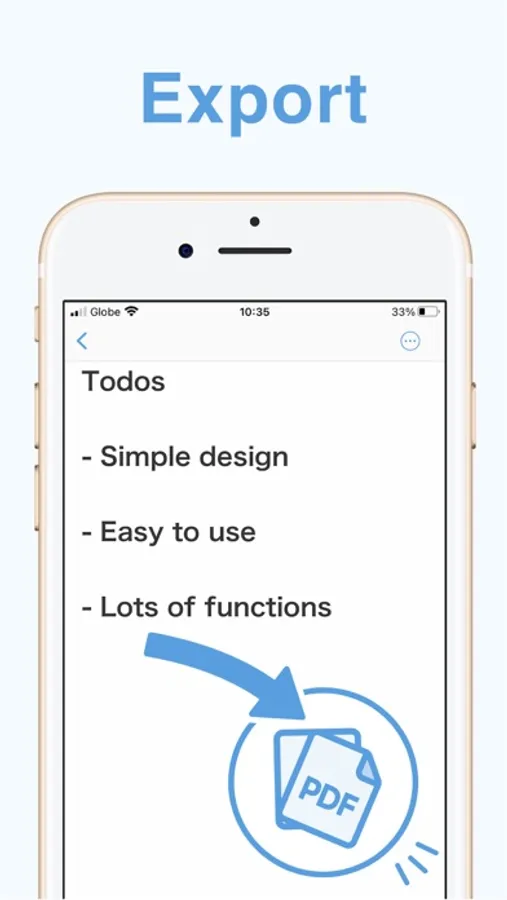
* PDF, HTML & PNG output
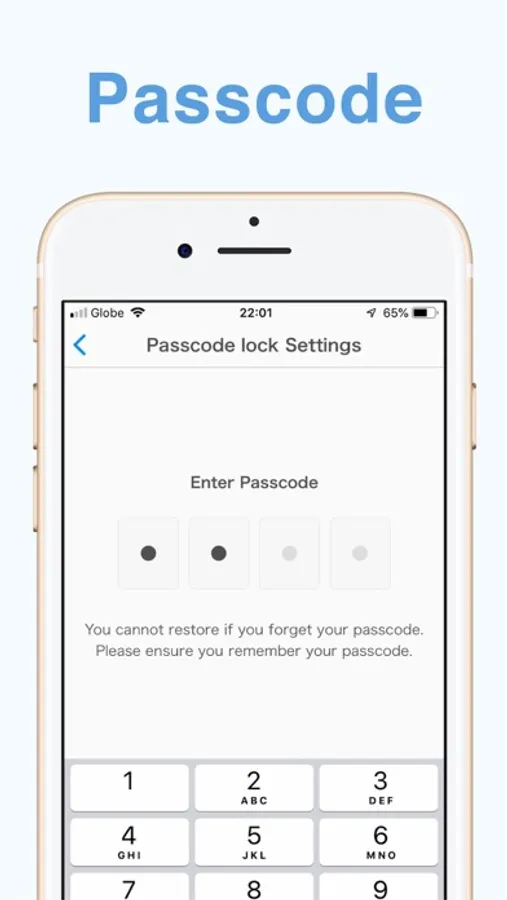
* Passcode lock
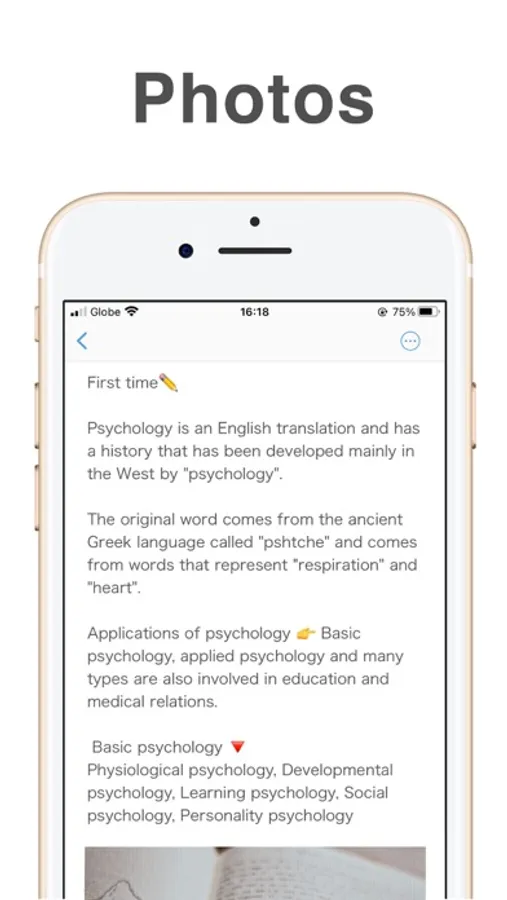
* Attach photos
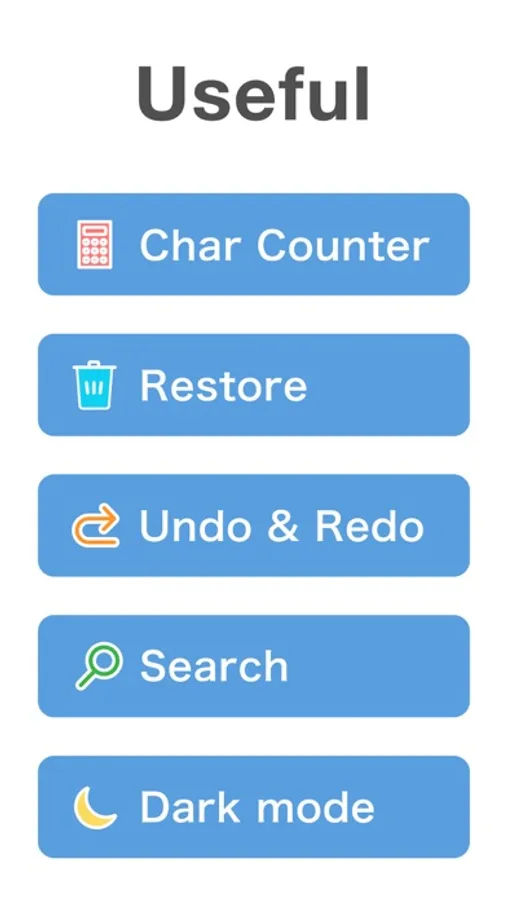
* Search
* Character count
* Undo, Redo
* Dark mode
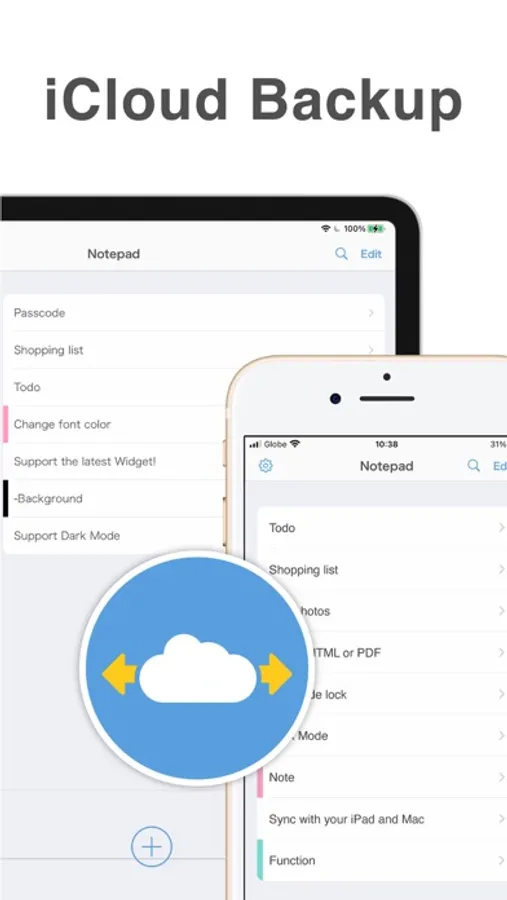
* iCloud backup
You can sync with iPad app and Mac app!
* Ad removal (paid)
The ads are just a banner at the bottom of the screen, but this banner can be removed with a one-time purchase charge, not subscription.
[How to set the widget]
1. Press and hold the home screen, and tap the plus button in the upper left corner.
2. Select this app.
3. Select the size you want (3 types) and place it.
[How to change the memo to be displayed in the widget]
1. Set the widget.
2. Long press the widget and tap "Edit Widget".
3. Tap "Memo" and select the memo you want to display.
[Contact Us]
If you have any questions about the app, please contact us from "Help" → "Contact Us" in the app settings screen.
Useful features such as PDF output and iCloud backup.
It's easy for anyone to use, and it's perfect for quick notes!
[Functions]
* Text size
* Background color
* Text color
* PDF, HTML & PNG output
* Passcode lock
* Attach photos
* Search
* Character count
* Undo, Redo
* Dark mode
* iCloud backup
You can sync with iPad app and Mac app!
* Ad removal (paid)
The ads are just a banner at the bottom of the screen, but this banner can be removed with a one-time purchase charge, not subscription.
[How to set the widget]
1. Press and hold the home screen, and tap the plus button in the upper left corner.
2. Select this app.
3. Select the size you want (3 types) and place it.
[How to change the memo to be displayed in the widget]
1. Set the widget.
2. Long press the widget and tap "Edit Widget".
3. Tap "Memo" and select the memo you want to display.
[Contact Us]
If you have any questions about the app, please contact us from "Help" → "Contact Us" in the app settings screen.