AppRecs review analysis
AppRecs rating 2.1. Trustworthiness 78 out of 100. Review manipulation risk 22 out of 100. Based on a review sample analyzed.
★★☆☆☆
2.1
AppRecs Rating
Ratings breakdown
5 star
40%
4 star
0%
3 star
0%
2 star
0%
1 star
60%
What to know
✓
Low review manipulation risk
22% review manipulation risk
✓
Credible reviews
78% trustworthiness score from analyzed reviews
⚠
Mixed user feedback
Average 2.6★ rating suggests room for improvement
About PocketCam Lite
** UPDATE ** Support for FaceTime, iChat/Messages on macs added!
** YouTube Video: http://www.youtube.com/watch?v=A69c4HHok3U
** IMPORTANT ** Please turn off Bluetooth on the device (Settings→General→Bluetooth) before using PocketCam. Otherwise, you may experience frame drops/freeze.
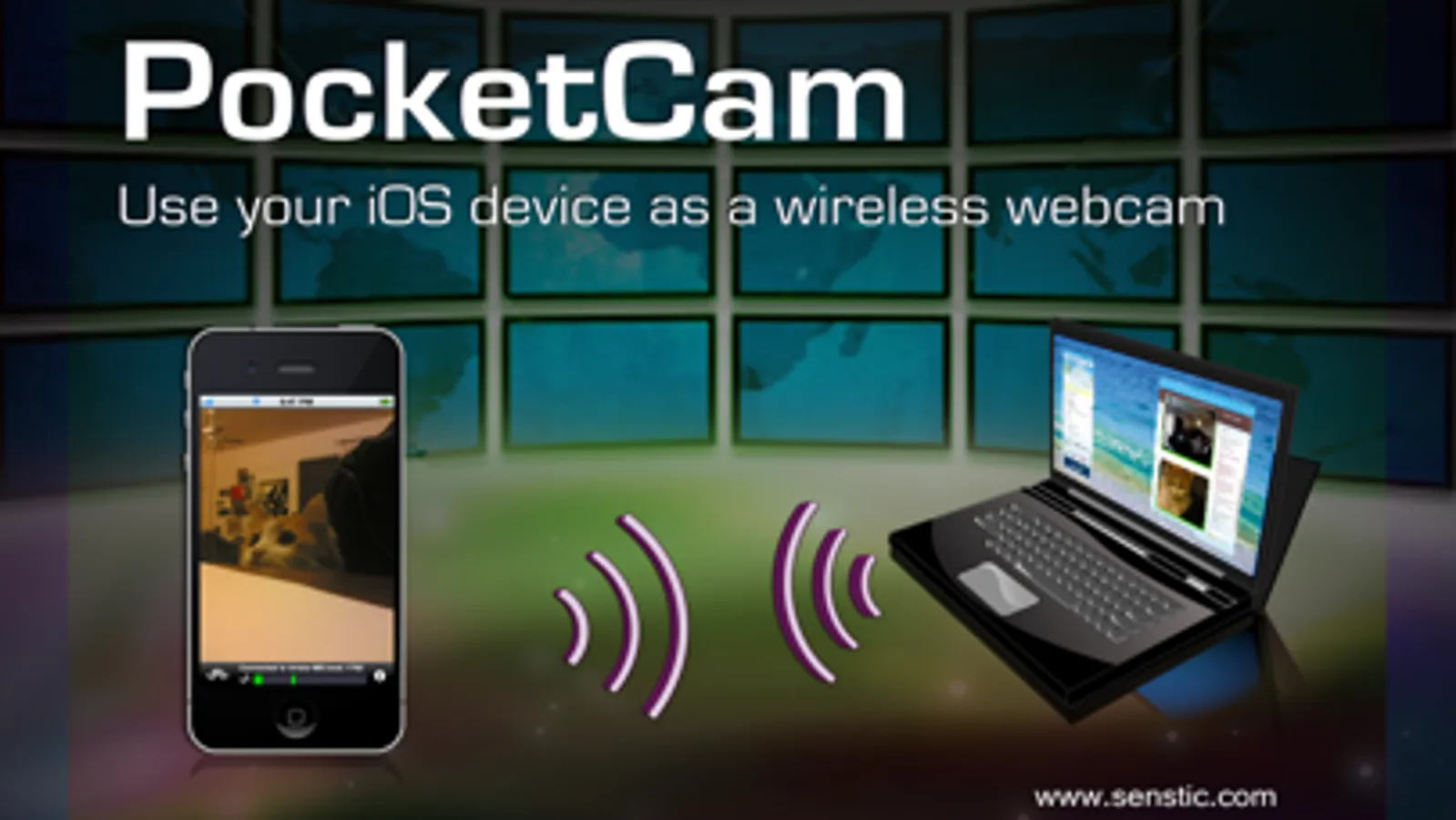
Why paying for an expensive webcam when you can use your awesome iOS device for video conference? Better yet, your iOS webcam is wireless! Now you can use your iOS device to show around your house/apartment on your favorite webcam applications such as FaceTime, iChat/Messages, Windows Live or Skype.
PocketCam lets you use your iPhone/iPod Touch/iPad as a wireless webcam for your Windows-based computer or Mac (OS X 10.7 or above). PocketCam automatically forwards video captured by your iOS camera, which can then be used as if they come from a virtual webcam.
PocketCam works with any Windows-based webcam or video conferencing applications, including instant message applications such as MSN Live Messenger, Skype, AIM, etc. For Mac users, PocketCam works with any Mac applications such as FaceTime, iChat/Messages, GTalk, Skype and aMSN.
You can even record the live video from your iOS cam using a webcam recorder such as QuickTime Pro.
INSTRUCTIONS:
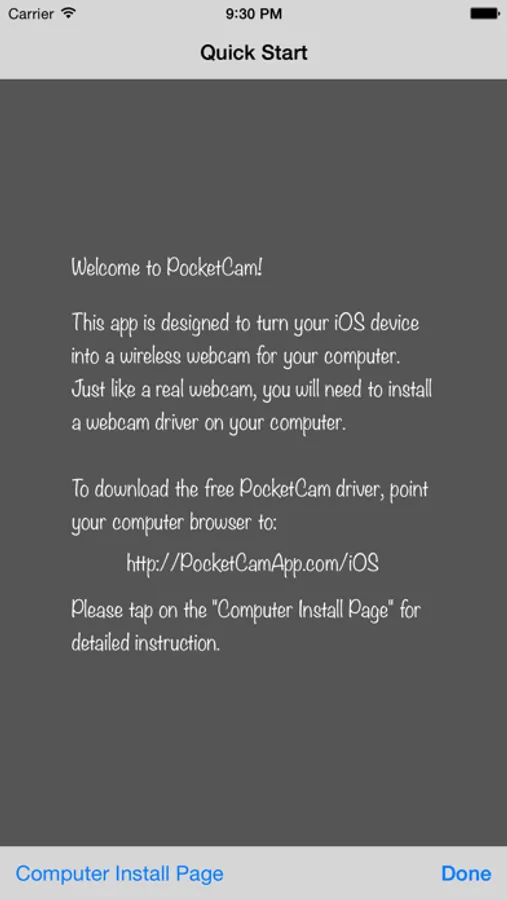
1. If you have not already done so, download and install the PocketControl for Windows or Mac software from our website: http://www.senstic.com/iPhone/PocketCam/PocketCam.aspx
2. On Windows, run PocketControl for Windows and make sure the PocketCam service is running on your computer. On Mac, run PocketControl, and run any application that uses webcam and select PocketCam as your preferred webcam.
3. Start PocketCam on iOS device, and the app will automatically connect to your computer. The bottom of your iOS screen should display "Connected to your_computer_name:port."
4. Start any program on your computer that uses webcam, and select "PocketCam" as your virtual webcam.
Enjoy live feed from your iOS camera as your webcam source!
Step-by-step instructions can be found at http://www.senstic.com/iphone/pocketcam/Support.aspx
LIMITATIONS:
1. Currently, PocketCam supports Windows XP/Vista/7/8, Mac OS X 10.7 (Lion) or above.
2. There is a half second delay before the images are shown up on the computer.
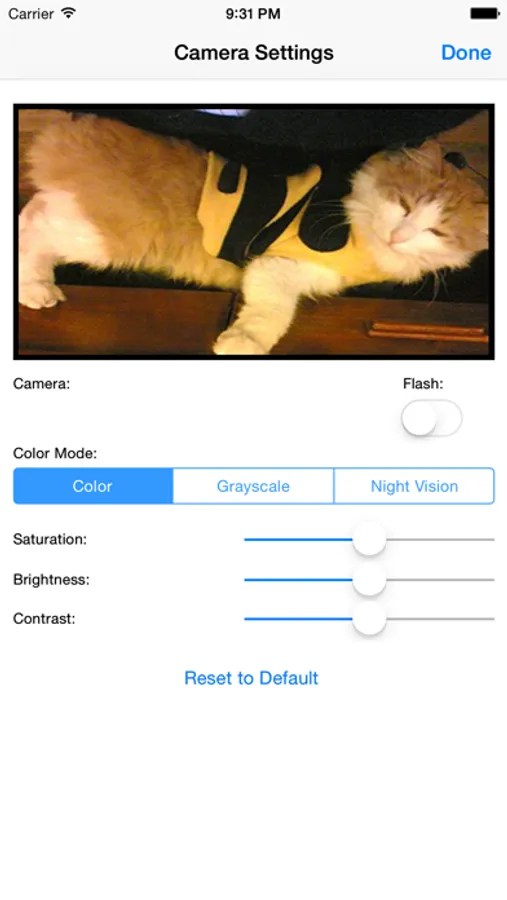
3. PocketCam Lite (free version) is limited to monochrome feed. Audio is not supported.
** YouTube Video: http://www.youtube.com/watch?v=A69c4HHok3U
** IMPORTANT ** Please turn off Bluetooth on the device (Settings→General→Bluetooth) before using PocketCam. Otherwise, you may experience frame drops/freeze.
Why paying for an expensive webcam when you can use your awesome iOS device for video conference? Better yet, your iOS webcam is wireless! Now you can use your iOS device to show around your house/apartment on your favorite webcam applications such as FaceTime, iChat/Messages, Windows Live or Skype.
PocketCam lets you use your iPhone/iPod Touch/iPad as a wireless webcam for your Windows-based computer or Mac (OS X 10.7 or above). PocketCam automatically forwards video captured by your iOS camera, which can then be used as if they come from a virtual webcam.
PocketCam works with any Windows-based webcam or video conferencing applications, including instant message applications such as MSN Live Messenger, Skype, AIM, etc. For Mac users, PocketCam works with any Mac applications such as FaceTime, iChat/Messages, GTalk, Skype and aMSN.
You can even record the live video from your iOS cam using a webcam recorder such as QuickTime Pro.
INSTRUCTIONS:
1. If you have not already done so, download and install the PocketControl for Windows or Mac software from our website: http://www.senstic.com/iPhone/PocketCam/PocketCam.aspx
2. On Windows, run PocketControl for Windows and make sure the PocketCam service is running on your computer. On Mac, run PocketControl, and run any application that uses webcam and select PocketCam as your preferred webcam.
3. Start PocketCam on iOS device, and the app will automatically connect to your computer. The bottom of your iOS screen should display "Connected to your_computer_name:port."
4. Start any program on your computer that uses webcam, and select "PocketCam" as your virtual webcam.
Enjoy live feed from your iOS camera as your webcam source!
Step-by-step instructions can be found at http://www.senstic.com/iphone/pocketcam/Support.aspx
LIMITATIONS:
1. Currently, PocketCam supports Windows XP/Vista/7/8, Mac OS X 10.7 (Lion) or above.
2. There is a half second delay before the images are shown up on the computer.
3. PocketCam Lite (free version) is limited to monochrome feed. Audio is not supported.