
AppRecs review analysis
AppRecs rating 4.3. Trustworthiness 62 out of 100. Review manipulation risk 30 out of 100. Based on a review sample analyzed.
★★★★☆
4.3
AppRecs Rating
Ratings breakdown
5 star
86%
4 star
7%
3 star
7%
2 star
0%
1 star
0%
What to know
✓
High user satisfaction
86% of sampled ratings are 5 stars
About AI OCR - Scan Text
Scan and extract text from images with incredible accuracy using ocrX. It supports extracting text from images in over 100 languages.
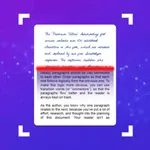
Recognize text from any images using our powerful OCR (Optical Character Recognition) engine. Supports handwritten texts. You can share the extracted text from the app directly. ocrX also supports exporting the extracted text as a Text or PDF file.
Features:
- High accuracy OCR.
- Supports 100+ languages.
- History of scanned images.
- Edit the extracted text to make changes if required.
- Share the extracted text to your preferred app.
- Copy the extracted text to the clipboard.
- Export the extracted text as a Text or PDF file.
How to use:
1. Open the app and tap on the New button.
2. Select the image from your Photo Library.
3. Crop the image if required.
4. Choose the language of text inside your image.
5. That's it. ocrX will scan and extract text from the image automatically.
We would love to hear from you. Feel free to reach out to us at support@aculix.com for feedback or any queries.
Your usage of this app is governed by the following policies:
Privacy Policy: https://legal.ocrx.app/privacy-policy
Terms of Service: https://legal.ocrx.app/terms-of-service
Everything else is governed by the terms presented under Apple's End User License Agreement.
Apple's EULA: https://www.apple.com/legal/internet-services/itunes/dev/stdeula/
Cheers! :)
Recognize text from any images using our powerful OCR (Optical Character Recognition) engine. Supports handwritten texts. You can share the extracted text from the app directly. ocrX also supports exporting the extracted text as a Text or PDF file.
Features:
- High accuracy OCR.
- Supports 100+ languages.
- History of scanned images.
- Edit the extracted text to make changes if required.
- Share the extracted text to your preferred app.
- Copy the extracted text to the clipboard.
- Export the extracted text as a Text or PDF file.
How to use:
1. Open the app and tap on the New button.
2. Select the image from your Photo Library.
3. Crop the image if required.
4. Choose the language of text inside your image.
5. That's it. ocrX will scan and extract text from the image automatically.
We would love to hear from you. Feel free to reach out to us at support@aculix.com for feedback or any queries.
Your usage of this app is governed by the following policies:
Privacy Policy: https://legal.ocrx.app/privacy-policy
Terms of Service: https://legal.ocrx.app/terms-of-service
Everything else is governed by the terms presented under Apple's End User License Agreement.
Apple's EULA: https://www.apple.com/legal/internet-services/itunes/dev/stdeula/
Cheers! :)










![Image to Text [OCR Scanner] icon](https://apprecs.org/ios/img/icons/webp/150/6450415595/ZXWep0v6Yo44dP2yg-xRx3yWTBFAaaynU46Dro34laQ-icon)