OrbitNote
Everway Opco Ltd.
4.6 ★
store rating
Free
AppRecs review analysis
AppRecs rating 4.4. Trustworthiness 79 out of 100. Review manipulation risk 31 out of 100. Based on a review sample analyzed.
★★★★☆
4.4
AppRecs Rating
Ratings breakdown
5 star
80%
4 star
10%
3 star
3%
2 star
2%
1 star
5%
What to know
✓
Credible reviews
79% trustworthiness score from analyzed reviews
✓
High user satisfaction
80% of sampled ratings are 5 stars
✓
Authentic reviews
No red flags detected
About OrbitNote
OrbitNote is an accessible, reading and study PDF tool for all. Annotate, mark up, listen to and save PDF files which are then still fully compatible with other popular PDF apps. Have accessible text PDF files spoken back to you with human quality voice & synchronised highlighting. PDF image files or photographs of text can be converted to accessible, searchable PDF files and read in the app.
+ Speech, Productivity and Accessibility
Alongside the full range of iOS system voices, OrbitNote comes with a range of high-quality voices in different languages. A ‘Speak in Background’ option lets you listen to a PDF while viewing another app - great for proofreading PDF files while you’re working in other apps. The ‘Speak on tap’ and ‘Stop on tap’ options make speech easy to control.
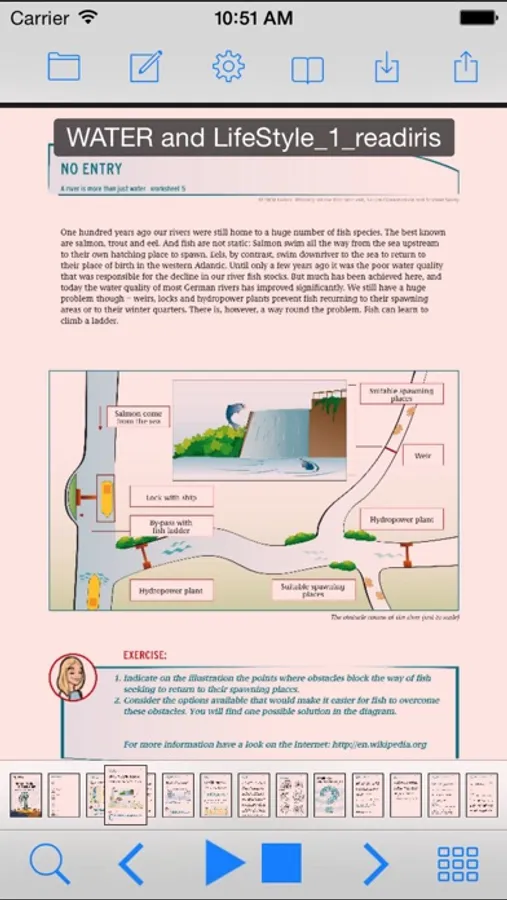
+ OrbitNote allows the background colour of the PDF to be changed, and text colour inverted, to enhance readability. OrbitNote fully supports VoiceOver.
+ Annotations, Notes and Comments
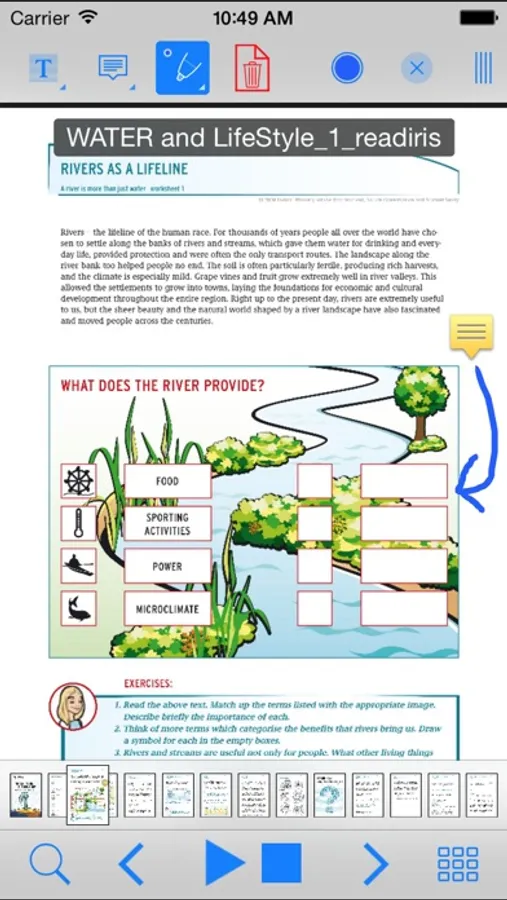
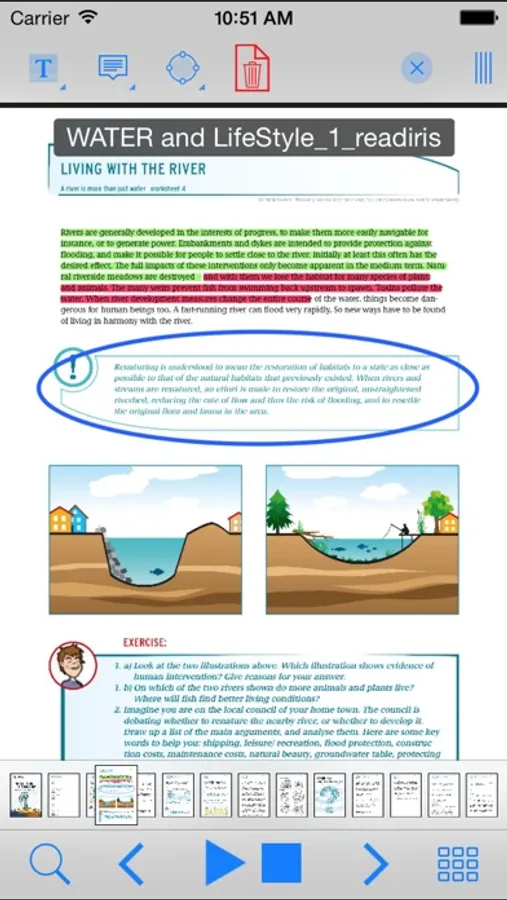
OrbitNote includes a powerful Annotation toolbar that lets you add notes and other comments. These are fully interchangeable with most other popular PDF apps, so your OrbitNote comments will still be there if you open the PDF on another device. Annotations created in another PDF app can also be viewed and edited.
Annotation features include: highlight; underscore; strikeout; notes; free text (type straight into the PDF); free line draw; shapes (circle, square, line - with many options); images (you can even insert photos from your iPad camera or photo library into the PDF file); audio and video.
+ Photos and Image PDF to Text PDF Conversion
You can convert photos and other images to fully accessible text PDF files that can be spoken, searched, copied and highlighted. As well as converting photos, you can also convert any PDF Image file into a fully accessible Text PDF file. Along with making these PDF files accessible and searchable, it will also compress them, reducing file size. Further credit can be purchased in app. Photos and Image PDF to Text PDF Conversion in OrbitNote requires an internet connection.
+ Managing PDF Files
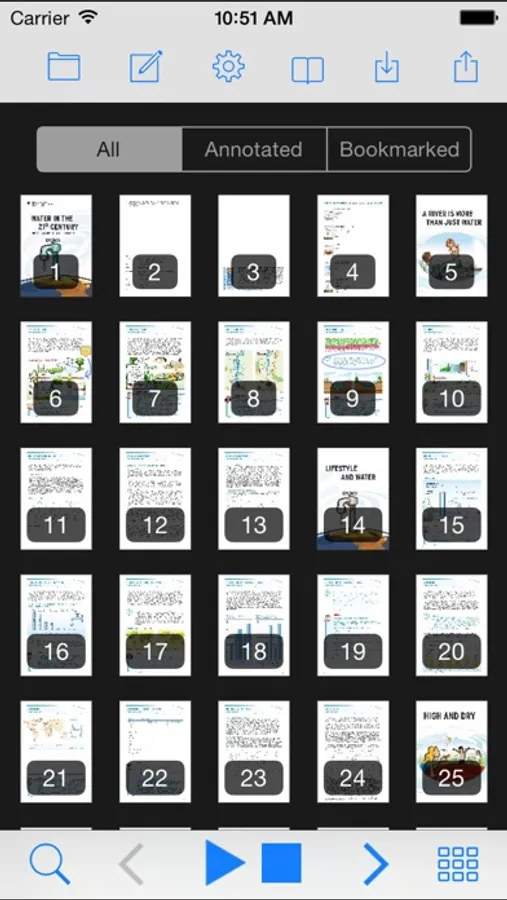
PDF files can be opened in OrbitNote from all other apps, including Mail and Safari. All opened PDF files will be placed in the OrbitNote Documents List for later viewing. You can also open files from Google Drive, OneDrive, or import directly from your device. PDF files can be saved into OrbitNote Documents, OneDrive or Google Drive, sent by email, or opened in other apps that support PDF files.
+ Sync with iCloud
You can sync ClaroPDF with your iCloud account. This lets you store and synchronise your PDF files and annotations across multiple devices. Sync with iCloud can also act as a document backup so you can keep your documents safe.
+ Switch Accessibility
OrbitNote responds to switch or Bluetooth keyboard commands:
1 (~1) Start speech
2 (~2) Stop speech
3 (~3) Turn to previous page
4 (~4) Turn to next page
+ Fullscreen mode
Allows the full document to be seen without toolbars in view. Ideal for smaller screens!
+ Speech, Productivity and Accessibility
Alongside the full range of iOS system voices, OrbitNote comes with a range of high-quality voices in different languages. A ‘Speak in Background’ option lets you listen to a PDF while viewing another app - great for proofreading PDF files while you’re working in other apps. The ‘Speak on tap’ and ‘Stop on tap’ options make speech easy to control.
+ OrbitNote allows the background colour of the PDF to be changed, and text colour inverted, to enhance readability. OrbitNote fully supports VoiceOver.
+ Annotations, Notes and Comments
OrbitNote includes a powerful Annotation toolbar that lets you add notes and other comments. These are fully interchangeable with most other popular PDF apps, so your OrbitNote comments will still be there if you open the PDF on another device. Annotations created in another PDF app can also be viewed and edited.
Annotation features include: highlight; underscore; strikeout; notes; free text (type straight into the PDF); free line draw; shapes (circle, square, line - with many options); images (you can even insert photos from your iPad camera or photo library into the PDF file); audio and video.
+ Photos and Image PDF to Text PDF Conversion
You can convert photos and other images to fully accessible text PDF files that can be spoken, searched, copied and highlighted. As well as converting photos, you can also convert any PDF Image file into a fully accessible Text PDF file. Along with making these PDF files accessible and searchable, it will also compress them, reducing file size. Further credit can be purchased in app. Photos and Image PDF to Text PDF Conversion in OrbitNote requires an internet connection.
+ Managing PDF Files
PDF files can be opened in OrbitNote from all other apps, including Mail and Safari. All opened PDF files will be placed in the OrbitNote Documents List for later viewing. You can also open files from Google Drive, OneDrive, or import directly from your device. PDF files can be saved into OrbitNote Documents, OneDrive or Google Drive, sent by email, or opened in other apps that support PDF files.
+ Sync with iCloud
You can sync ClaroPDF with your iCloud account. This lets you store and synchronise your PDF files and annotations across multiple devices. Sync with iCloud can also act as a document backup so you can keep your documents safe.
+ Switch Accessibility
OrbitNote responds to switch or Bluetooth keyboard commands:
1 (~1) Start speech
2 (~2) Stop speech
3 (~3) Turn to previous page
4 (~4) Turn to next page
+ Fullscreen mode
Allows the full document to be seen without toolbars in view. Ideal for smaller screens!