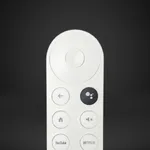
In this remote control app, you can connect to your TV, navigate menus, and control playback. Includes Wi-Fi connectivity, app launching, and volume adjustment features.
AppRecs review analysis
AppRecs rating 4.1. Trustworthiness 64 out of 100. Review manipulation risk 34 out of 100. Based on a review sample analyzed.
★★★★☆
4.1
AppRecs Rating
Ratings breakdown
5 star
80%
4 star
11%
3 star
4%
2 star
2%
1 star
4%
What to know
✓
High user satisfaction
80% of sampled ratings are 5 stars
✓
Authentic reviews
Natural distribution, no red flags
About Remote for Chromecast TV
**DISCLAIMER
This app is not the official Google app. It is not affiliated with or endorsed by Google.It was designed with care to try and bring Chromecast users an overall better experience.
The Ultimate TV Remote App
Turn your iPhone or iPad into a powerful and easy-to-use remote.
Key Features:
User-Friendly Interface:
A sleek and intuitive design ensures a seamless experience, making it easy for anyone to control TV
Smart Touchpad:
Effortlessly navigate menus, control playback, and browse apps with a smooth, responsive touchpad.
Smart Keyboard:
Quickly type and search for movies, shows, or apps without struggling with on-screen typing.
Quick Access Controls:
Play, pause, adjust volume, and switch between apps instantly with easy-to-use buttons.
One-Tap App Launching:
Instantly open any app on your TV.
Seamless Connectivity:
Connect to your TV in seconds via Wi-Fi, no additional hardware needed!
How to Use Chromote on Your iPhone or iPad?
Step 1: Ensure your TV and iPhone/iPad are connected to the same Wi-Fi network.
Step 2: Open the Chromote app, and it will automatically detect your TV
Step 3: Tap on connect, and a code will appear on your TV screen.
Step 4: Enter this code in the app to pair your device.
Enjoy full remote functionality instantly!
https://william-elbart-apps.web.app/privacy-policy.html
https://william-elbart-apps.web.app/terms.html
This app is not the official Google app. It is not affiliated with or endorsed by Google.It was designed with care to try and bring Chromecast users an overall better experience.
The Ultimate TV Remote App
Turn your iPhone or iPad into a powerful and easy-to-use remote.
Key Features:
User-Friendly Interface:
A sleek and intuitive design ensures a seamless experience, making it easy for anyone to control TV
Smart Touchpad:
Effortlessly navigate menus, control playback, and browse apps with a smooth, responsive touchpad.
Smart Keyboard:
Quickly type and search for movies, shows, or apps without struggling with on-screen typing.
Quick Access Controls:
Play, pause, adjust volume, and switch between apps instantly with easy-to-use buttons.
One-Tap App Launching:
Instantly open any app on your TV.
Seamless Connectivity:
Connect to your TV in seconds via Wi-Fi, no additional hardware needed!
How to Use Chromote on Your iPhone or iPad?
Step 1: Ensure your TV and iPhone/iPad are connected to the same Wi-Fi network.
Step 2: Open the Chromote app, and it will automatically detect your TV
Step 3: Tap on connect, and a code will appear on your TV screen.
Step 4: Enter this code in the app to pair your device.
Enjoy full remote functionality instantly!
https://william-elbart-apps.web.app/privacy-policy.html
https://william-elbart-apps.web.app/terms.html