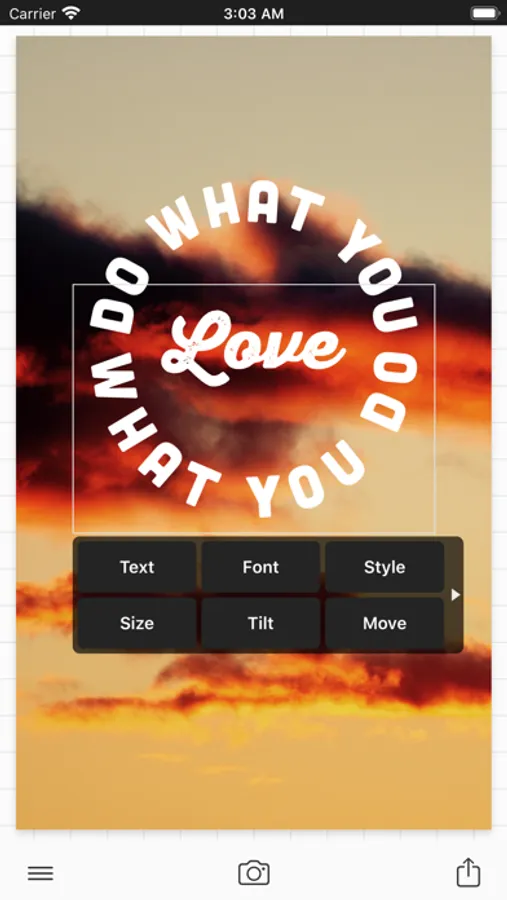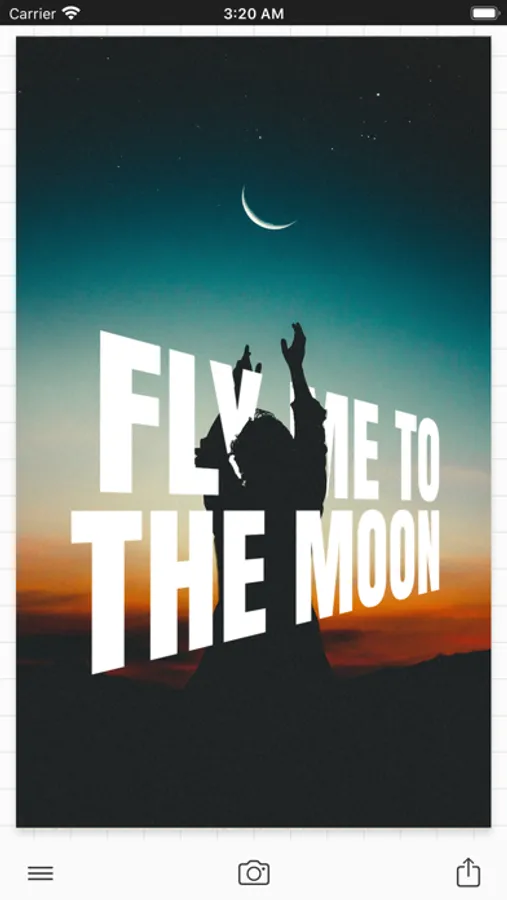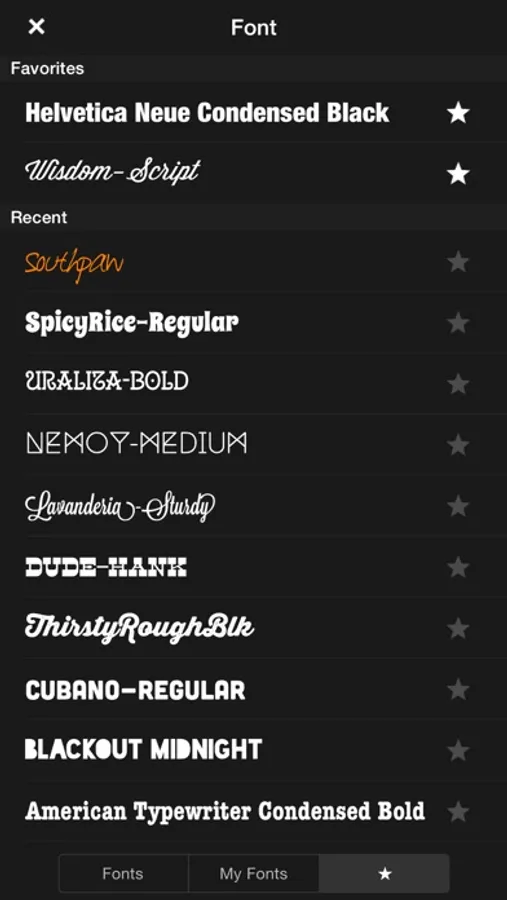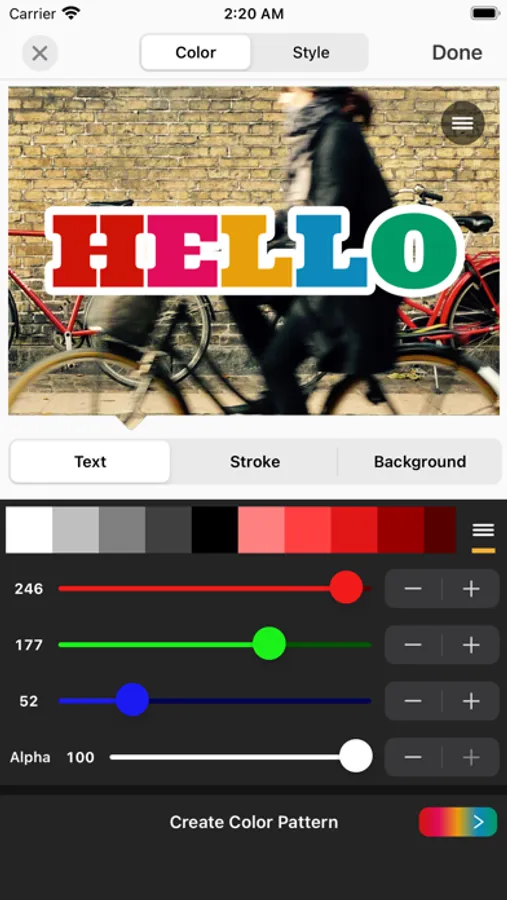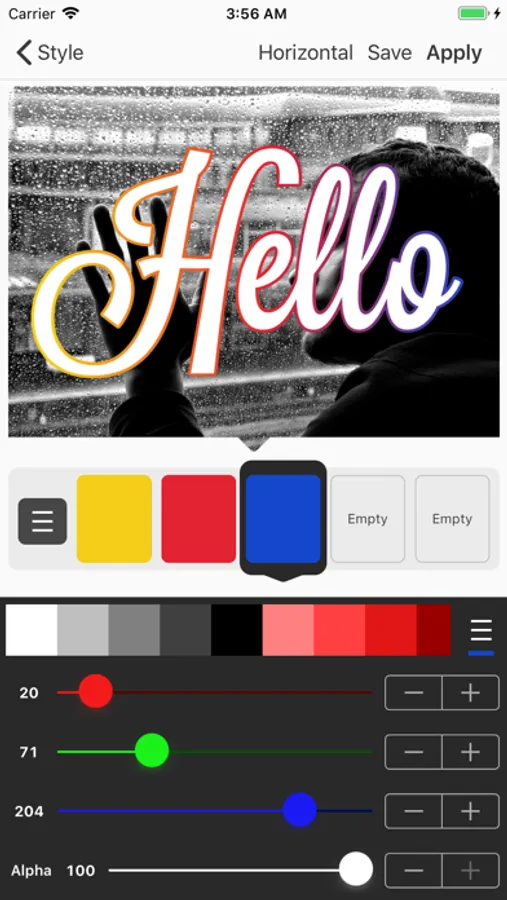
In this photo editing app, you can add customizable text with numerous fonts, colors, and effects. Includes font selection, color options, shadows, gradients, and sharing features.
AppRecs review analysis
AppRecs rating 4.6. Trustworthiness 76 out of 100. Review manipulation risk 29 out of 100. Based on a review sample analyzed.
★★★★☆
4.6
AppRecs Rating
Ratings breakdown
5 star
90%
4 star
6%
3 star
2%
2 star
1%
1 star
2%
What to know
✓
Low review manipulation risk
29% review manipulation risk
✓
Credible reviews
76% trustworthiness score from analyzed reviews
⚠
Ad complaints
Many low ratings mention excessive ads
About Phonto - Text on Photos
Phonto is a simple app that allows you to add text to pictures.
・ More than 400 fonts are available.
・ You can install other fonts.
・ Text size is changeable.
・ Text color is changeable.
・ Text gradient is changeable.
・ Text's stroke color is changeable.
・ Text's shadow color is changeable.
・ Text's background color is changeable.
・ Text is rotatable.
・ Text kerning is changeable.
・ Line spacing is changeable.
・ Curved text.
・ Perspective text.
・ Parts of text are erasable.
・ Image theme is changeable.
・ Items (Balloon, Rectangle, Star, Heart) are available.
・ Background image is changeable.
・ You can use not only pictures, but also plain images to write text.
・ You can share photos on Facebook, Twitter, and Instagram.
・ URL scheme: phonto://
Try Vont app, if you want to add text to videos. Vont is a free app that is available on the App Store.
--------------------------------
LANGUAGE
--------------------------------
Phonto supports only English (US), Chinese and Japanese, so when the priority of Chinese (or Japanese) in your setting was higher than English, Phonto would be launched as Chinese (or Japanese) mode.
To solve this problem…
1. Open the Settings app.
2. Choose 'English' in 'General' > 'Language & Region' > 'iPhone Language'.
3. Turn back your 'iPhone Language' to your favorite language.
--------------------------------
HOW TO INSTALL FONTS
--------------------------------
Using iTunes, you can copy font files between your computer and Phonto on your iOS device.
1. Select your iOS device from the Devices section of iTunes.
2. Click the Apps tab and scroll down to the bottom of the page.
3. Select "Phonto" in the "File Sharing" section.
4. Drag and drop .ttf or .otf font files into "Documents".
5. Restart Phonto.
More detail about how to install fonts.
https://phon.to/install_fonts
Twitter: @phontograph
Tumblr: http://phontogra.ph
https://phon.to
We obtained new URL which links to Phonto on the App Store. We appreciate if you introduce Phonto to your friends.
・ More than 400 fonts are available.
・ You can install other fonts.
・ Text size is changeable.
・ Text color is changeable.
・ Text gradient is changeable.
・ Text's stroke color is changeable.
・ Text's shadow color is changeable.
・ Text's background color is changeable.
・ Text is rotatable.
・ Text kerning is changeable.
・ Line spacing is changeable.
・ Curved text.
・ Perspective text.
・ Parts of text are erasable.
・ Image theme is changeable.
・ Items (Balloon, Rectangle, Star, Heart) are available.
・ Background image is changeable.
・ You can use not only pictures, but also plain images to write text.
・ You can share photos on Facebook, Twitter, and Instagram.
・ URL scheme: phonto://
Try Vont app, if you want to add text to videos. Vont is a free app that is available on the App Store.
--------------------------------
LANGUAGE
--------------------------------
Phonto supports only English (US), Chinese and Japanese, so when the priority of Chinese (or Japanese) in your setting was higher than English, Phonto would be launched as Chinese (or Japanese) mode.
To solve this problem…
1. Open the Settings app.
2. Choose 'English' in 'General' > 'Language & Region' > 'iPhone Language'.
3. Turn back your 'iPhone Language' to your favorite language.
--------------------------------
HOW TO INSTALL FONTS
--------------------------------
Using iTunes, you can copy font files between your computer and Phonto on your iOS device.
1. Select your iOS device from the Devices section of iTunes.
2. Click the Apps tab and scroll down to the bottom of the page.
3. Select "Phonto" in the "File Sharing" section.
4. Drag and drop .ttf or .otf font files into "Documents".
5. Restart Phonto.
More detail about how to install fonts.
https://phon.to/install_fonts
Twitter: @phontograph
Tumblr: http://phontogra.ph
https://phon.to
We obtained new URL which links to Phonto on the App Store. We appreciate if you introduce Phonto to your friends.